Set Up the Broker
You connect your chargers to the OCPP Broker yourself in the Pleevi Portal, in three steps:
- Enter your CPMS URL and create the broker configuration.
- Point your chargers to the Pleevi OCPP Broker URL.
- Check that your chargers appear in the portal.
Open your site in the portal and go to the OCPP Broker tab. The steps at the top of the tab show where you are.
1. Enter your CPMS URL
Fill in the WebSocket URL your chargers connect to today in CPMS URL, for example wss://cpms.example.com/ocpp. This is usually a wss:// or ws:// URL from your CPMS vendor. Leave Mode on Transaction linking and click Create.
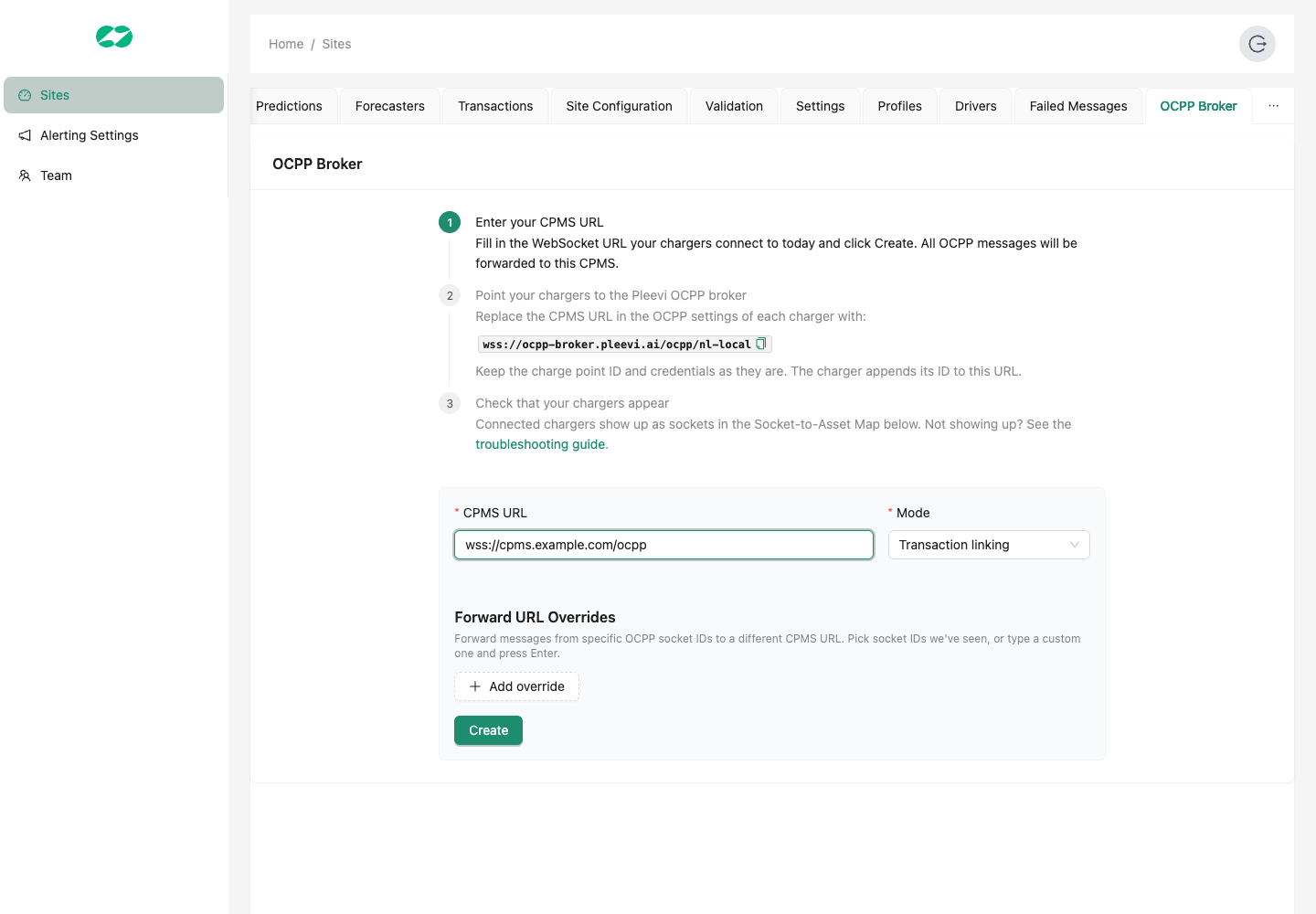
If some chargers use a different CPMS, add them under Forward URL Overrides: pick their charge point IDs, or type an ID and press Enter.
Create the configuration before you change your chargers. The broker closes connections for sites without a configuration.
To change the CPMS URL later, edit the form and click Update. Delete removes the configuration; chargers that still point to the broker then can no longer reach your CPMS.
2. Point your chargers to the broker
After you click Create, the second step shows the broker URL for your site. Click the copy icon next to it.
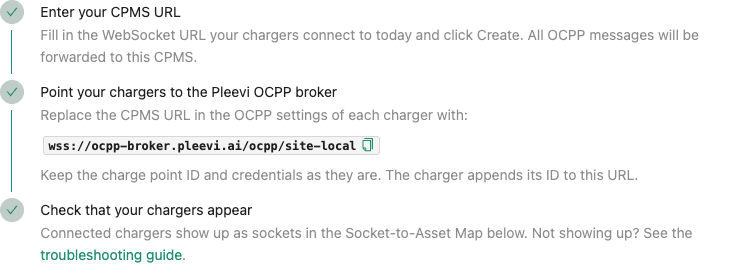
The URL looks like this:
wss://ocpp-broker.pleevi.ai/ocpp/<your-site-id>
In the OCPP settings of each charger (in its web interface, installer app or your CPMS), replace the CPMS URL with this URL. Keep everything else as it is:
- Charge point ID: keep it. The charger adds it to the end of the URL, so the broker sees
wss://ocpp-broker.pleevi.ai/ocpp/<your-site-id>/<charge-point-id>. Do not add it yourself unless your charger asks for the full URL. - Password and security profile: keep them. The broker passes them on to your CPMS, which still handles authentication.
If your charger has several network profiles or fallback URLs, point all of them to the broker. Otherwise the charger can switch back to your CPMS directly, and Pleevi stops seeing its sessions.
Most chargers reconnect right away. Some need a reboot.
3. Check that your chargers appear
A charger shows up in the Socket-to-Asset Map below the form as soon as the broker receives its first message, usually within a minute, and the third step turns green. The page refreshes on its own. A green dot means the charger is connected right now.
Next, map the chargers to your assets. No charger in the table means it cannot reach the broker; see Troubleshooting.
Troubleshooting
If a charger does not show up after a few minutes, it cannot connect to the broker. Check these in order:
- Check the URL. It must be exactly
wss://ocpp-broker.pleevi.ai/ocpp/<your-site-id>, with the site ID as it is in the portal and no extra spaces or slashes. Copy it from the portal instead of typing it. - Check the certificate. With
wss://the charger must trust the broker's TLS certificate, and its clock must be right. Chargers with an outdated certificate store, or a wrong date, refuse the connection. If your charger does not support TLS, usews://ocpp-broker.pleevi.ai/ocpp/<your-site-id>instead. - Check internet access. The charger must reach the public internet. Chargers on a private APN, a closed SIM or a local-only network often cannot. Ask your SIM or network provider to open outbound internet traffic.
- Check the firewall. Make sure no firewall or proxy blocks outbound traffic to
ocpp-broker.pleevi.aion port443(wss://) or port80(ws://), or blocks WebSocket connections. - Update the firmware. Install the latest firmware from your charger manufacturer. Older firmware often has bugs in its OCPP connection.
Still not working? Look in the charger's own logs for the moment it tries to connect to the Pleevi broker, and export that part or take a screenshot of it. Email it to support@pleevi.ai with your site ID, the charge point ID, the charger brand and model, and its firmware version.