Manage Drivers
A driver is a person who charges at your site, recognised by the badges (RFID cards or tokens) they charge with. When a charger reports a known badge, Pleevi links the charging session to that driver. With the OCPP Broker, the badge comes from the charger's OCPP start message.
Open your site in the Pleevi Portal and go to the Drivers tab. It lists the drivers of the site with their vehicle, badges and charging profile. Search by email, vehicle or badge, and delete a driver with the bin icon.
Add one driver
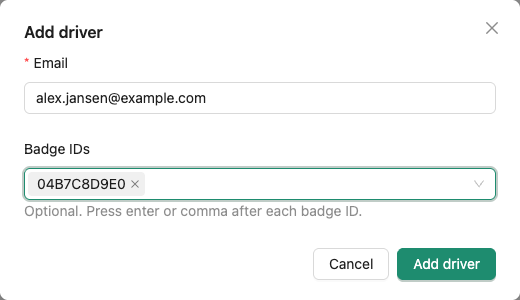
- Click Add driver.
- Enter the driver's Email.
- Under Badge IDs, type each badge ID exactly as the charger reports it and press Enter. Badges are optional.
- Click Add driver. The driver is linked to this site.
Upload drivers from a CSV file
To add many drivers at once, upload them from a CSV file. Start from the example file or make your own.
The file needs an email column and can have a badge_ids column. Separate the columns with , and the badges of one driver with ;. Leave badge_ids empty for a driver without badges.
email,badge_ids
jane.doe@example.com,04A1B2C3D4;04E5F6A7B8
john.smith@example.com,04C9D0E1F2
fleet.car.12@example.com,
- On the Drivers tab, click Upload CSV.
- Click Select CSV file and pick your file.
- Check the preview. Rows with a missing, invalid or repeated email are skipped and listed above the table.
- Click Create N drivers. If one of them fails, none are created.
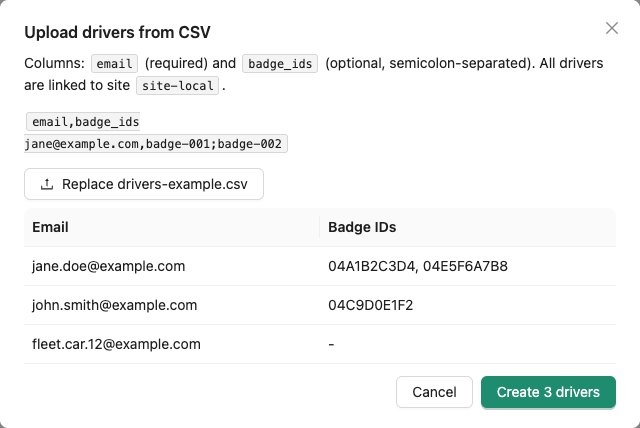
All drivers in the file are linked to the site you upload them on.